
September 24, 2026 · Productivity
Keyboard Shortcuts: The Hidden Superpowers
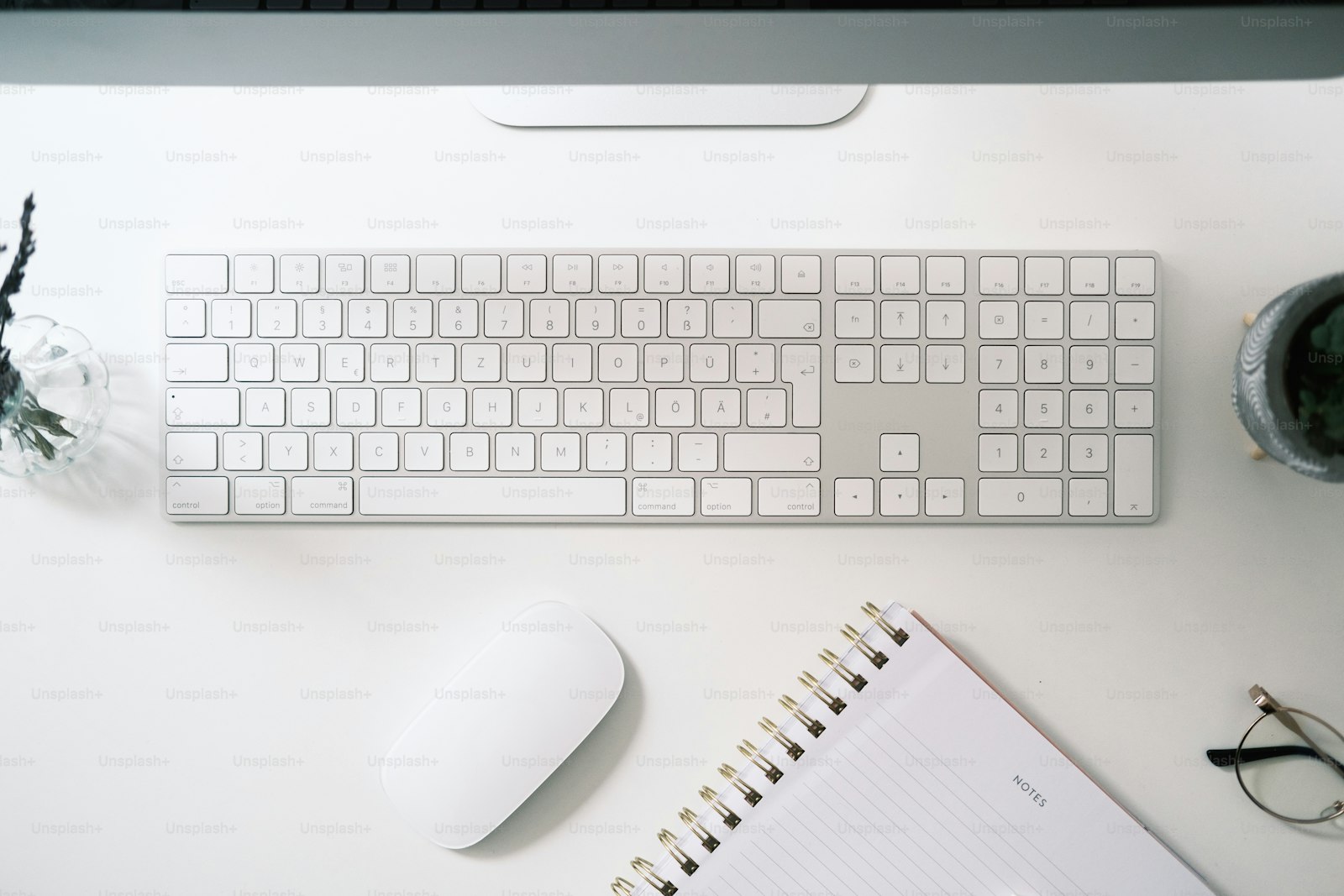
Photo by Kübra Arslaner on Unsplash
No matter which operating system you use, I believe one of the most fundamental skills you should master is keyboard shortcuts. Small combinations that help you execute interactions quickly and without friction. I want to share a few of the most useful shortcuts that changed the way I work. Some are obvious, but several of them were not obvious to me at first. I hope a few of these will help you work a little faster and with less interruption.
The Ones That Changed My Workflow
The best shortcuts are the ones that remove friction from everyday work. They are small, but they matter a lot over time.
⌥ ⇧ ⌘ V (Paste Without Formatting)
Paste without formatting strips styling and keeps the content clean. This is especially useful when copying text from the web or other documents.
⌥ ⌘ Delete (Delete File Immediately)
When you select a file and press Option + Command + Delete, it disappears immediately instead of going to the Trash.
Return / Enter (Rename)
Instead of right-clicking and searching the menu, just select a file and press Return. It renames instantly.
⌘ W (Close Window)
Command + W closes the active window, while Command + Q quits the app entirely.
⌘ H (Hide Window)
Command + H hides the current app window, keeping the exact state intact.
⌘ F (Search)
This is one of the most universal shortcuts and works across apps and browsers.
Space (Preview)
Hover over a file and press Space to preview it without opening the app. Arrow keys let you move through the preview quickly.
⌘ O (Open Folder)
From within apps like Pages or Numbers, Command + O opens the Finder directly in the relevant folder. That saves a lot of navigation overhead.
General Shortcuts
| Action | Shortcut |
|---|---|
| Copy / Paste | ⌘ C / ⌘ V |
| Cut | ⌘ X |
| Undo / Redo | ⌘ Z / ⇧ ⌘ Z |
| Select All | ⌘ A |
| Search | ⌘ F |
| Close App Window | ⌘ W |
| Quit App | ⌘ Q |
| Hide App | ⌘ H |
| Switch Between Apps | ⌘ Tab |
| Switch Between Windows of Same App | ⌘ ` |
| Open Spotlight | ⌘ Space |
| Lock Screen | Ctrl ⌘ Q |
Finder and Files
| Action | Shortcut |
|---|---|
| New Finder Tab | ⌘ T |
| New Finder Window | ⌘ N |
| Open File or Folder | ⌘ O or Return |
| Rename File | Return |
| Move File to Trash | ⌘ Delete |
| Delete File Immediately | ⌥ ⌘ Delete |
| Quick Look | Space |
| Show Info | ⌘ I |
| Show/Hide Hidden Files | ⌘ ⇧ . |
| Go to Parent Folder | ⌘ ↑ |
| Go to Home Folder | ⇧ ⌘ H |
| Go to Desktop | ⇧ ⌘ D |
| Open Downloads | ⌥ ⌘ L |
Windows and Workspaces
| Action | Shortcut |
|---|---|
| Show All Windows | Ctrl ↑ |
| Show All Windows of Current App | Ctrl ↓ |
| Switch Between Desktops | Ctrl ← / Ctrl → |
| Toggle Fullscreen | Ctrl ⌘ F |
| Minimize Current Window | ⌘ M |
| Minimize All Windows of Current App | ⌥ ⌘ M |
| Hide Current App | ⌘ H |
| Hide Other Apps | ⌥ ⌘ H |
Text Editing
| Action | Shortcut |
|---|---|
| Go to Beginning of Line | ⌘ ← |
| Go to End of Line | ⌘ → |
| Go to Beginning of Document | ⌘ ↑ |
| Go to End of Document | ⌘ ↓ |
| Jump Word by Word | ⌥ ← / ⌥ → |
| Delete Word by Word | ⌥ Delete |
| Delete to Beginning of Line | ⌘ Delete |
| Delete to End of Line | Ctrl K |
| Bold / Italic | ⌘ B / ⌘ I |
| Insert Link | ⌘ K |
| Find and Next Match | ⌘ F / ⌘ G |
Screenshots
| Action | Shortcut |
|---|---|
| Capture Entire Screen | ⇧ ⌘ 3 |
| Select Area | ⇧ ⌘ 4 |
| Capture Window | ⇧ ⌘ 4, then Space |
| Screenshot Menu and Screen Recording | ⇧ ⌘ 5 |
| Screenshot to Clipboard | Hold Ctrl additionally |
Safari and Browser
| Action | Shortcut |
|---|---|
| New Tab | ⌘ T |
| Close Tab | ⌘ W |
| Reopen Closed Tab | ⇧ ⌘ T |
| Switch Between Tabs | Ctrl Tab or ⌘ ⇧ ] / ⌘ ⇧ [ |
| Activate Address Bar | ⌘ L |
| Reload Page | ⌘ R |
| Open History | ⌘ Y |
| Show Downloads | ⌥ ⌘ L |
| Open Link in New Tab | ⌘-Click |
The deeper benefit
These shortcuts become second nature over time. They are not just about speed — they are about flow. When you do not have to break your concentration to reach for the mouse, you stay in the zone. That matters whether you are a developer, writer, designer, or someone who spends a lot of time on a computer.
Keyboard shortcuts are not a gimmick. They are one of the highest-leverage skills you can build because they reduce friction in every repeated task. That is why I keep learning them, refining them, and relying on them more and more.